pip is python’s package management tool. Installing it on Linux is relatively simple,
but installing it on Windows is a bit more troublesome.
Installing Python
First we go to Python’s official site to download Python.
It’s worth noting that Python2 and Python3 are very different—
the difference between them might be half the difference between Java and JavaScript.
The version I’m used to is Python2.7.
After downloading and installing, openMy Computer right-click menu > Properties > Advanced system settings > Environment Variables
to set Path:
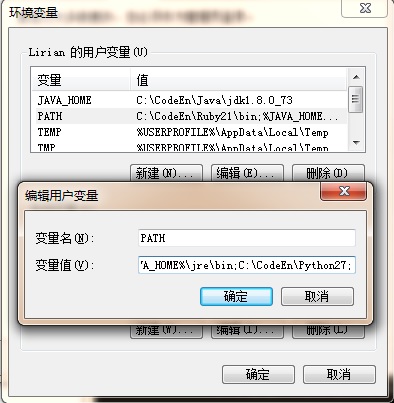
Then we open the command prompt and we can enter python’s shell:
> python
Python 2.7.11 on win32
Type "help", "copyright", "credits" or "license" for more information.
>>> exit()
Installing pip
We use get-pip.py for one-click pip installation.
First right-click and save it somewhere.
Then we open command prompt as administrator,
and run the file directly with python to install pip:
python get-pip.py
The way to run pip on Windows is:
python -m pip

Usage:
  C:\CodeEn\Python27\python.exe -m pip <command> [options]

Commands:
  install                     Install packages.
  download                    Download packages.
  uninstall                   Uninstall packages.
  freeze                      Output installed packages in requirements format.
  list                        List installed packages.
  show                        Show information about installed packages.
  search                      Search PyPI for packages.
  wheel                       Build wheels from your requirements.
  hash                        Compute hashes of package archives.
  completion                  A helper command used for command completion
  help                        Show help for commands.
Installing C++ for Python
Many Python libraries on Windows depend on C++ 9.0.
Click the link below to download and install:
Microsoft Visual C++ Compiler for Python 2.7
Finally we can use python -m pip install to install new modules.